Ring Chime Pro and Chime lights: what each colour and flash means
On a 2nd Gen Chime or Chime Pro, no light at all is the normal state: Ring calls it online idle mode. The circle lights only during start-up, setup, updates and trouble — green while it boots or waits for setup, blue for connecting and success, red for a wifi or internet failure or overheating. The 1st Gen chimes speak through the Ring logo instead, in blue only, and the same solid blue means something else on each generation.
This is the plug-in chime that goes with a Ring doorbell, not the doorbell itself. For the light circle on the doorbell, see Ring doorbell lights.
Ring’s offline-devices article suggests adding a Chime Pro to boost the wifi signal for other Ring devices; the plain Chime is not mentioned there.
Same look, different meaning
These lights share a colour and movement, so check the rhythm and which model you have.
| What you see | What Ring says, by model |
|---|---|
| blue, flashing or blinking |
|
| blue, solid (steady) |
|
| red, flashing or blinking |
|
Chime and Chime Pro (2nd Gen)
The light is the circle on the front of the chime. 10 lights.
Solid green circle
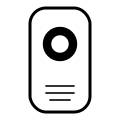
The chime is booting up.
Applies to: Chime and Chime Pro (2nd Gen).
What to do
Ring Help gives no step for this light on the page cited; the meaning above is all it says.
Source:
- Ring Help: Understanding Chime light patterns — Chime and Chime Pro (1st Gen) and Chime and Chime Pro (2nd Gen). ring.com Checked 2026-10-16.
Green circle flashing
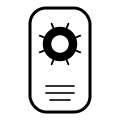
The chime is in setup mode.
Applies to: Chime and Chime Pro (2nd Gen).
What to do
Ring Help gives no step for this light on the page cited; the meaning above is all it says.
Source:
- Ring Help: Understanding Chime light patterns — Chime and Chime Pro (1st Gen) and Chime and Chime Pro (2nd Gen). ring.com Checked 2026-10-16.
Blue circle flashing
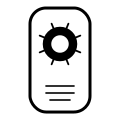
The chime is trying to connect.
Applies to: Chime and Chime Pro (2nd Gen).
What to do
Ring Help gives no step for this light on the page cited; the meaning above is all it says.
The maker puts this light down to Wi-Fi or the network. If the problem is the router itself, its own lights are explained on the router and broadband hub lights page.
Source:
- Ring Help: Understanding Chime light patterns — Chime and Chime Pro (1st Gen) and Chime and Chime Pro (2nd Gen). ring.com Checked 2026-10-16.
Solid blue circle
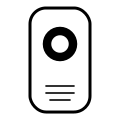
Setup was successful. (On a 1st Gen chime, solid blue means only that it is powered on.)
Applies to: Chime and Chime Pro (2nd Gen).
What to do
Ring Help gives no step for this light on the page cited; the meaning above is all it says.
Source:
- Ring Help: Understanding Chime light patterns — Chime and Chime Pro (1st Gen) and Chime and Chime Pro (2nd Gen). ring.com Checked 2026-10-16.
No light
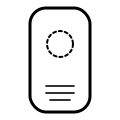
Normal: Ring calls this online idle mode. A 2nd Gen chime that is set up and online shows no light at all.
Applies to: Chime and Chime Pro (2nd Gen).
What to do
Ring Help gives no step for this light on the page cited; the meaning above is all it says.
Source:
- Ring Help: Understanding Chime light patterns — Chime and Chime Pro (1st Gen) and Chime and Chime Pro (2nd Gen). ring.com Checked 2026-10-16.
Blue and green circle, alternating
Ring lists this one pattern for two things: a firmware update in progress, and a factory reset.
Applies to: Chime and Chime Pro (2nd Gen).
What to do
Ring Help gives no step for this light on the page cited; the meaning above is all it says.
Source:
- Ring Help: Understanding Chime light patterns — Chime and Chime Pro (1st Gen) and Chime and Chime Pro (2nd Gen). ring.com Checked 2026-10-16.
Red and green circle, alternating
Setup failed: the chime could not connect to your home wifi network because an incorrect wifi password was entered.
Applies to: Chime and Chime Pro (2nd Gen).
What to do
Ring Help gives no step for this light on the page cited; the meaning above is all it says.
The maker puts this light down to Wi-Fi or the network. If the problem is the router itself, its own lights are explained on the router and broadband hub lights page.
Source:
- Ring Help: Understanding Chime light patterns — Chime and Chime Pro (1st Gen) and Chime and Chime Pro (2nd Gen). ring.com Checked 2026-10-16.
Red circle flashing
No internet.
Applies to: Chime and Chime Pro (2nd Gen).
What Ring says to do
- In the Ring app, open the menu (☰), tap Devices, tap the chime, then the Device Health tile. Under Network, tap Reconnect or Change Network and follow the prompts.
- Watch the light as it reconnects. If reconnecting fails, Ring points to its guide for resolving setup issues.
- If it keeps disconnecting, Ring suggests moving the device closer to your wifi router.
- As a last resort, Ring says you can factory reset the device and set it up again from scratch.
The maker puts this light down to Wi-Fi or the network. If the problem is the router itself, its own lights are explained on the router and broadband hub lights page.
Source:
- Ring Help: Understanding Chime light patterns — Chime and Chime Pro (1st Gen) and Chime and Chime Pro (2nd Gen). ring.com Checked 2026-10-16.
- Ring Help: Fixing offline devices — All Ring devices that connect to wifi (a general article, not written for chimes alone). ring.com Checked 2026-10-16.
Solid red circle
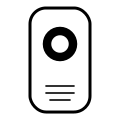
The wifi connection failed.
Applies to: Chime and Chime Pro (2nd Gen).
What Ring says to do
- In the Ring app, open the menu (☰), tap Devices, tap the chime, then the Device Health tile. Under Network, tap Reconnect or Change Network and follow the prompts.
- If it keeps disconnecting, Ring suggests moving the device closer to your wifi router.
- As a last resort, Ring says you can factory reset the device and set it up again from scratch.
The maker puts this light down to Wi-Fi or the network. If the problem is the router itself, its own lights are explained on the router and broadband hub lights page.
Source:
- Ring Help: Understanding Chime light patterns — Chime and Chime Pro (1st Gen) and Chime and Chime Pro (2nd Gen). ring.com Checked 2026-10-16.
- Ring Help: Fixing offline devices — All Ring devices that connect to wifi (a general article, not written for chimes alone). ring.com Checked 2026-10-16.
Red circle flashing three short, three long, three short, then a pause
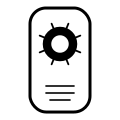
The chime is overheating. Ring describes no internet as plain red flashing; this one has a set rhythm of short and long flashes.
Applies to: Chime and Chime Pro (2nd Gen).
What to do
Ring Help gives no step for this light on the page cited; the meaning above is all it says.
Source:
- Ring Help: Understanding Chime light patterns — Chime and Chime Pro (1st Gen) and Chime and Chime Pro (2nd Gen). ring.com Checked 2026-10-16.
Chime and Chime Pro (1st Gen)
The light is the Ring logo on the front of the chime. Ring marks this generation discontinued. 4 lights.
Solid blue Ring logo
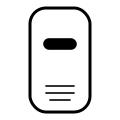
The chime is powered on. (On a 2nd Gen chime, solid blue means setup was successful.)
Applies to: Chime and Chime Pro (1st Gen).
What to do
Ring Help gives no step for this light on the page cited; the meaning above is all it says.
Source:
- Ring Help: Understanding Chime light patterns — Chime and Chime Pro (1st Gen) and Chime and Chime Pro (2nd Gen). ring.com Checked 2026-10-16.
Blue Ring logo pulsing
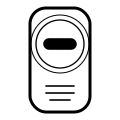
The chime is in setup mode.
Applies to: Chime and Chime Pro (1st Gen).
What to do
Ring Help gives no step for this light on the page cited; the meaning above is all it says.
Source:
- Ring Help: Understanding Chime light patterns — Chime and Chime Pro (1st Gen) and Chime and Chime Pro (2nd Gen). ring.com Checked 2026-10-16.
Blue Ring logo flashing one second on, one second off
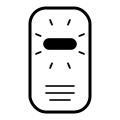
Setup failed: the chime cannot detect your home wifi network.
Applies to: Chime and Chime Pro (1st Gen).
What to do
Ring Help gives no step for this light on the page cited; the meaning above is all it says.
The maker puts this light down to Wi-Fi or the network. If the problem is the router itself, its own lights are explained on the router and broadband hub lights page.
Source:
- Ring Help: Understanding Chime light patterns — Chime and Chime Pro (1st Gen) and Chime and Chime Pro (2nd Gen). ring.com Checked 2026-10-16.
Blue Ring logo flashing quickly
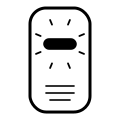
Ring lists this one pattern for two things: scanning for available networks, and rebooting. Its page does not say how to tell them apart.
Applies to: Chime and Chime Pro (1st Gen).
What to do
Ring Help gives no step for this light on the page cited; the meaning above is all it says.
Source:
- Ring Help: Understanding Chime light patterns — Chime and Chime Pro (1st Gen) and Chime and Chime Pro (2nd Gen). ring.com Checked 2026-10-16.
What this page cannot tell you
- It cannot tell your chime’s generation from the light alone. Solid blue is “powered on” on a 1st Gen and “setup successful” on a 2nd Gen; if the light is the Ring logo it is a 1st Gen, if it is a circle it is a 2nd Gen.
- It cannot separate the two meanings Ring gives one pattern. Ring lists fast blue flashing on a 1st Gen as both scanning for networks and rebooting, and alternating blue and green on a 2nd Gen as both a firmware update and a factory reset; what you just did is the only clue.
- It gives no step Ring does not give. Ring’s light page states meanings only; the steps shown come from Ring’s general article on offline devices, which is not written for chimes alone.
- It cannot see your network. The Device Health tile in the Ring app shows the chime’s real connection.
Sources
Ring’s own help pages only, read on the date shown. Nothing here comes from third-party “lights explained” sites or forums.
- Ring Help: Understanding Chime light patterns — Chime and Chime Pro (1st Gen) and Chime and Chime Pro (2nd Gen). ring.com Checked 2026-10-16.
- Ring Help: Fixing offline devices — All Ring devices that connect to wifi (a general article, not written for chimes alone). ring.com Checked 2026-10-16.
Find a doorbell light by colour and movement on any maker’s doorbell →