Blink Sync Module lights: what each LED pattern means
A Blink Sync Module has two LEDs on top, one blue and one green, and shows red when it cannot join your Wi-Fi. Solid blue with solid green is the healthy state. Blink gives the same six patterns, word for word, for the Sync Module Core, Sync Module XR, Sync Module 2 and the first Sync Module, so one list covers all four; only the XR has one extra case, when a MicroSD card is inside.
The Sync Module is the small hub that goes with a Blink doorbell and Blink cameras, not the doorbell itself. For the lights on the doorbell button, see Blink doorbell lights.
The LEDs are on the top of the Sync Module. Blink’s app also shows a “Sync Module is Offline” banner on the home screen and blurs each camera thumbnail that needs the Sync Module when it drops off.
Sync Module Core, Sync Module XR, Sync Module 2 and Sync Module (1st Gen)
Blink’s LED article gives the same six patterns and meanings for all four. The last light below is from its troubleshooting article and applies to the Sync Module XR only. 7 lights.
Solid blue and solid green
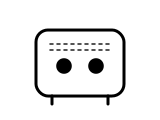
The Sync Module is online and connected to your network. One exception from Blink’s troubleshooting article: an offline Sync Module XR with a MicroSD card can also show this.
Applies to: Sync Module Core, XR, 2 and 1st Gen.
What to do
Blink Support gives no step for this light on the page cited; the meaning above is all it says.
Source:
- Blink Support: Understanding the LEDs on your Sync Module — Sync Module Core, Sync Module XR, Sync Module 2 and Sync Module (1st Gen). support.blinkforhome.com Checked 2026-10-16.
- Blink Support: Sync Module Troubleshooting — All Sync Modules; one section for a Sync Module XR with a MicroSD card. support.blinkforhome.com Checked 2026-10-16.
Solid blue
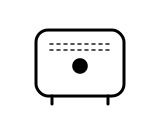
The Sync Module is starting up.
Applies to: Sync Module Core, XR, 2 and 1st Gen.
What to do
Blink Support gives no step for this light on the page cited; the meaning above is all it says.
Source:
- Blink Support: Understanding the LEDs on your Sync Module — Sync Module Core, Sync Module XR, Sync Module 2 and Sync Module (1st Gen). support.blinkforhome.com Checked 2026-10-16.
Blinking blue and solid green
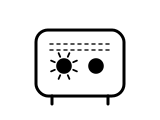
The Sync Module is in pairing mode and ready to be set up.
Applies to: Sync Module Core, XR, 2 and 1st Gen.
What Blink says to do
- In the Blink app, tap + at the top right of the Home screen, then Sync Module. Scan the QR code on the back of the device or tap Enter Serial Manually, and pick or create a system.
- With this light showing, tap Discover Device. Blink says to check its LED article if a different pattern shows.
- Join the temporary Wi-Fi network BLINK-xxxx (xxxx is the last four digits of the serial number), then choose your own Wi-Fi network and enter its password. Blink says the Sync Module may then update its firmware, which can take a few moments.
Source:
- Blink Support: Understanding the LEDs on your Sync Module — Sync Module Core, Sync Module XR, Sync Module 2 and Sync Module (1st Gen). support.blinkforhome.com Checked 2026-10-16.
- Blink Support: Setting up your Sync Module 2 — Sync Module 2. support.blinkforhome.com Checked 2026-10-16.
Solid blue and blinking green
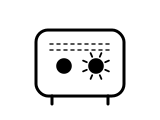
The Sync Module has gone offline and is trying to reconnect to the network it was set up on. Blink names power cuts, a changed Wi-Fi password, and interference from pods or extenders as causes.
Applies to: Sync Module Core, XR, 2 and 1st Gen.
What Blink says to do
- Check that your Wi-Fi password has not changed since setup. If it has, Blink says to update the Sync Module with the new password.
- Power-cycle your router: unplug it, wait 30 seconds, plug it back in.
- Power-cycle the Sync Module: unplug it for 10 seconds, then plug it back in. Solid blue and solid green afterwards means it has reconnected.
- Disconnect any pods or extenders so only your main router is on. Blink says you can reconnect them once the Sync Module is online.
- If it is still offline, Blink says to delete the Sync Module and add it again.
The maker puts this light down to Wi-Fi or the network. If the problem is the router itself, its own lights are explained on the router and broadband hub lights page.
Source:
- Blink Support: Understanding the LEDs on your Sync Module — Sync Module Core, Sync Module XR, Sync Module 2 and Sync Module (1st Gen). support.blinkforhome.com Checked 2026-10-16.
- Blink Support: Sync Module Troubleshooting — All Sync Modules; one section for a Sync Module XR with a MicroSD card. support.blinkforhome.com Checked 2026-10-16.
Solid red
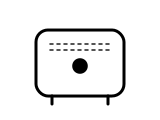
The Sync Module cannot connect to your network, or the Wi-Fi password entered may be wrong. Blink’s troubleshooting article places this during setup.
Applies to: Sync Module Core, XR, 2 and 1st Gen.
What Blink says to do
- Check the Wi-Fi password. If the Blink app says “Incorrect Password for Your Wi-Fi”, re-enter it carefully and try again.
- Put the Sync Module in the same room as your router, but not too close, and away from physical obstructions.
- Turn off any VPN, firewall or anti-virus app on your phone, and any app Blink lists as conflicting with the Blink app.
- Power-cycle the Sync Module for 10 seconds; blinking blue and solid green afterwards means it is ready for setup again. Power-cycle the router for 30 seconds.
- Disconnect pods or extenders. If it still fails, Blink says to factory reset the Sync Module.
The maker puts this light down to Wi-Fi or the network. If the problem is the router itself, its own lights are explained on the router and broadband hub lights page.
Source:
- Blink Support: Understanding the LEDs on your Sync Module — Sync Module Core, Sync Module XR, Sync Module 2 and Sync Module (1st Gen). support.blinkforhome.com Checked 2026-10-16.
- Blink Support: Sync Module Troubleshooting — All Sync Modules; one section for a Sync Module XR with a MicroSD card. support.blinkforhome.com Checked 2026-10-16.
No light
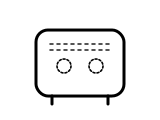
The Sync Module is not plugged into an outlet, or there is a power issue.
Applies to: Sync Module Core, XR, 2 and 1st Gen.
What Blink says to do
Power. Blink links this light to the Sync Module’s power. The steps here are only Blink’s own, as its pages state them; semiatic gives no electrical instructions of its own.
- Blink says to make sure the power adapter is firmly connected to both the Sync Module and the outlet (from its Sync Module XR steps).
- Blink says to confirm the outlet works by testing it with another device, or to try another outlet.
Source:
- Blink Support: Understanding the LEDs on your Sync Module — Sync Module Core, Sync Module XR, Sync Module 2 and Sync Module (1st Gen). support.blinkforhome.com Checked 2026-10-16.
- Blink Support: Sync Module Troubleshooting — All Sync Modules; one section for a Sync Module XR with a MicroSD card. support.blinkforhome.com Checked 2026-10-16.
Dim or flickering lights (Sync Module XR with a MicroSD card)
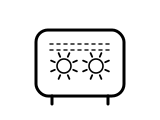
Blink lists this among the signs of an offline Sync Module XR with a MicroSD card: a power problem, or a faulty or damaged card.
Applies to: Sync Module XR with a MicroSD card inserted.
What Blink says to do
Power. Blink links this light to the Sync Module’s power. The steps here are only Blink’s own, as its pages state them; semiatic gives no electrical instructions of its own.
- Blink says to check the power adapter is firmly connected and the outlet works first.
- Blink says to unplug the Sync Module, take out the MicroSD card and look for damage, replacing it if damaged.
- Blink says to plug the Sync Module back in and reinsert the card only once it shows solid blue and green; if it goes offline again, the card may be faulty.
- If it stays offline with a new card, Blink says to contact its Technical Support.
Source:
- Blink Support: Sync Module Troubleshooting — All Sync Modules; one section for a Sync Module XR with a MicroSD card. support.blinkforhome.com Checked 2026-10-16.
What this page cannot tell you
- It cannot tell the Sync Module models apart: Blink gives all four the same patterns, so the light does not say which one you have. The label on the back does.
- It cannot prove the hub is online. Blink’s troubleshooting article says an offline Sync Module XR with a MicroSD card can still show solid blue and solid green; the app’s offline banner is the better test.
- It cannot say which LED shows red. Blink writes only “Solid red”, so the drawing shows one red light without placing it.
- The setup steps shown are from Blink’s Sync Module 2 setup article; Blink has separate setup articles for the Core and the XR.
Sources
Blink’s own help pages only, read on the date shown. Nothing here comes from third-party “lights explained” sites or forums.
- Blink Support: Understanding the LEDs on your Sync Module — Sync Module Core, Sync Module XR, Sync Module 2 and Sync Module (1st Gen). support.blinkforhome.com Checked 2026-10-16.
- Blink Support: Sync Module Troubleshooting — All Sync Modules; one section for a Sync Module XR with a MicroSD card. support.blinkforhome.com Checked 2026-10-16.
- Blink Support: Setting up your Sync Module 2 — Sync Module 2. support.blinkforhome.com Checked 2026-10-16.
Find a doorbell light by colour and movement on any maker’s doorbell →