Easee charger lights: what each colour and blink means
An Easee charger talks through a vertical light strip on its front. Easee says to read three things: the colour, whether it is solid, pulsing or flashing, and how many LEDs are lit. White or blue is normal use; red is access refused or an error; a single flashing bottom LED is about the site setup, not your car.
The light is the strip on the front of the charger; the bottom LED sometimes signals on its own. Easee’s page says it was last reviewed on 15 September 2026.
One or two white LEDs lit
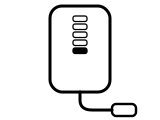
Standby.
Applies to: Easee chargers. What you see: white, solid (steady).
What to do
Easee Help gives no step for the owner for this light on the page cited; the meaning above is what it says.
Source:
- Easee Help: Easee charger LED lights – light strip colours, patterns and meanings — Easee chargers. support.easee.com Checked 2026-09-29.
Solid white or blue strip
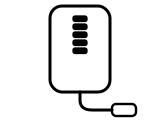
During normal use: a vehicle is connected.
Applies to: Easee chargers. What you see: white or blue, solid (steady).
What Easee says to do
- Easee says: if charging is not as expected, the light alone does not explain why; check the charger’s status in the Easee App.
Source:
- Easee Help: Easee charger LED lights – light strip colours, patterns and meanings — Easee chargers. support.easee.com Checked 2026-09-29.
Pulsing white or blue strip
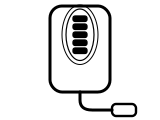
Charging is in progress.
Applies to: Easee chargers. What you see: white or blue, pulsing, breathing or fading.
What to do
Easee Help gives no step for the owner for this light on the page cited; the meaning above is what it says.
Source:
- Easee Help: Easee charger LED lights – light strip colours, patterns and meanings — Easee chargers. support.easee.com Checked 2026-09-29.
Rapidly flashing white strip
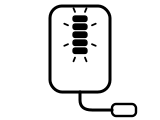
Your key or tag is being checked.
Applies to: Easee chargers. What you see: white, flashing or blinking.
What Easee says to do
- Easee says: wait for the light to change.
Source:
- Easee Help: Easee charger LED lights – light strip colours, patterns and meanings — Easee chargers. support.easee.com Checked 2026-09-29.
Flashing white strip
Approval is needed to start charging: the charger is waiting for permission to start the session.
Applies to: Easee chargers. What you see: white, flashing or blinking.
What Easee says to do
- Easee says: use an approved Easee Key, RFID tag or the charging method provided for this site.
- Easee says: if you do not know which method to use, ask the person or operator responsible for the charger.
Source:
- Easee Help: Easee charger LED lights – light strip colours, patterns and meanings — Easee chargers. support.easee.com Checked 2026-09-29.
Flashing red after using a key or the app
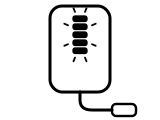
Charging access was not accepted: the charger did not accept the key, tag or app authorisation used.
Applies to: Easee chargers. What you see: red, flashing or blinking.
What Easee says to do
- Easee says: if you used a key or RFID tag, check that it is registered and allowed to charge at this site; if another approved key is available, try it once.
- Easee says: if you started from an app, check that you are using the account approved for this charger.
- Easee says: if a charging operator manages your access, contact that operator.
Source:
- Easee Help: Easee charger LED lights – light strip colours, patterns and meanings — Easee chargers. support.easee.com Checked 2026-09-29.
Flashing red at another time
A charging or safety error: something is preventing charging, for example a high-temperature shutdown.
Applies to: Easee chargers. What you see: red, flashing or blinking.
What Easee says to do
- Easee says: open your charger in the Easee App and follow the instructions for the warning or error shown before trying to charge again.
- Easee says: if no warning is shown, you cannot check the app, or the red light continues, contact Easee Technical Support.
Source:
- Easee Help: Easee charger LED lights – light strip colours, patterns and meanings — Easee chargers. support.easee.com Checked 2026-09-29.
Solid red strip
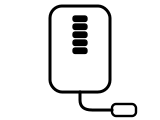
A charger error that needs attention.
Applies to: Easee chargers. What you see: red, solid (steady).
What Easee says to do
Electrical safety. Easee ties this light to the power supply, earthing or an electrical fault, or its own steps use the circuit breaker, fuse box, RCD or isolator. The steps here are only Easee’s own, as its page states them; semiatic gives no electrical instructions of its own.
Easee says to contact an authorised electrician if a breaker or RCD trips again.
- Easee says: disconnect the charging cable if it can be removed normally; do not force a locked cable.
- Easee says: open the Easee App, check for a warning or error and follow the guidance shown.
- Easee says: if a breaker or RCD trips again, do not keep resetting it; leave it switched off and contact an authorised electrician.
Source:
- Easee Help: Easee charger LED lights – light strip colours, patterns and meanings — Easee chargers. support.easee.com Checked 2026-09-29.
Bottom LED flashing white
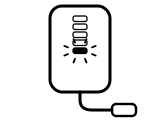
On a site with several chargers: this charger has lost its connection to the primary charger (the Master) on the same circuit and is searching for it.
Applies to: Easee chargers. What you see: white, flashing or blinking.
What Easee says to do
- Easee says: ask the site owner, administrator or charging operator to check that the primary charger has power and is available, and tell them only the bottom LED is flashing white.
Source:
- Easee Help: Easee charger LED lights – light strip colours, patterns and meanings — Easee chargers. support.easee.com Checked 2026-09-29.
Bottom LED flashing yellow
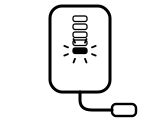
Installation setup is not complete: the installer has not finished configuring the charger.
Applies to: Easee chargers. What you see: yellow, flashing or blinking.
What Easee says to do
- Easee says: tell the installer, or the company responsible for the installation, that the bottom LED is flashing yellow and ask them to complete the setup. Adding the charger to your Easee App does not complete it.
Source:
- Easee Help: Easee charger LED lights – light strip colours, patterns and meanings — Easee chargers. support.easee.com Checked 2026-09-29.
No light on the strip
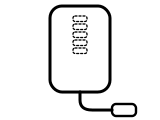
A dark strip does not by itself tell you whether the charger has lost power.
Applies to: Easee chargers. What you see: no light, off.
What Easee says to do
Electrical safety. Easee ties this light to the power supply, earthing or an electrical fault, or its own steps use the circuit breaker, fuse box, RCD or isolator. The steps here are only Easee’s own, as its page states them; semiatic gives no electrical instructions of its own.
- Easee says: if you can see the charger in the Easee App, check whether it is online.
- Easee says: if it is online, check whether it is deactivated or whether its light settings explain the dark strip.
- Easee says: if it is offline, or you cannot check, use its power-loss guide before restoring power.
- Easee says: at a shared charging site, report the dark strip to the site owner or charging operator.
Source:
- Easee Help: Easee charger LED lights – light strip colours, patterns and meanings — Easee chargers. support.easee.com Checked 2026-09-29.
Sources
Easee’s own help pages or manual only, read on the date shown. Nothing here comes from third-party “lights explained” sites or forums.
- Easee Help: Easee charger LED lights – light strip colours, patterns and meanings — Easee chargers. support.easee.com Checked 2026-09-29.
Find a light by colour, movement and flash count on any maker’s charger →